FIELD NOTE / Wayland · Linux · C · desktop development
XPWm: rebuilding the Windows XP desktop on Wayland
The green Start button, the blue taskbar, the hill. Windows XP has a desktop you can recognize before opening a single window. With XPWm, I’m rebuilding that experience on Linux, targeting Windows XP SP3 behavior and Luna Blue visuals on Wayland.
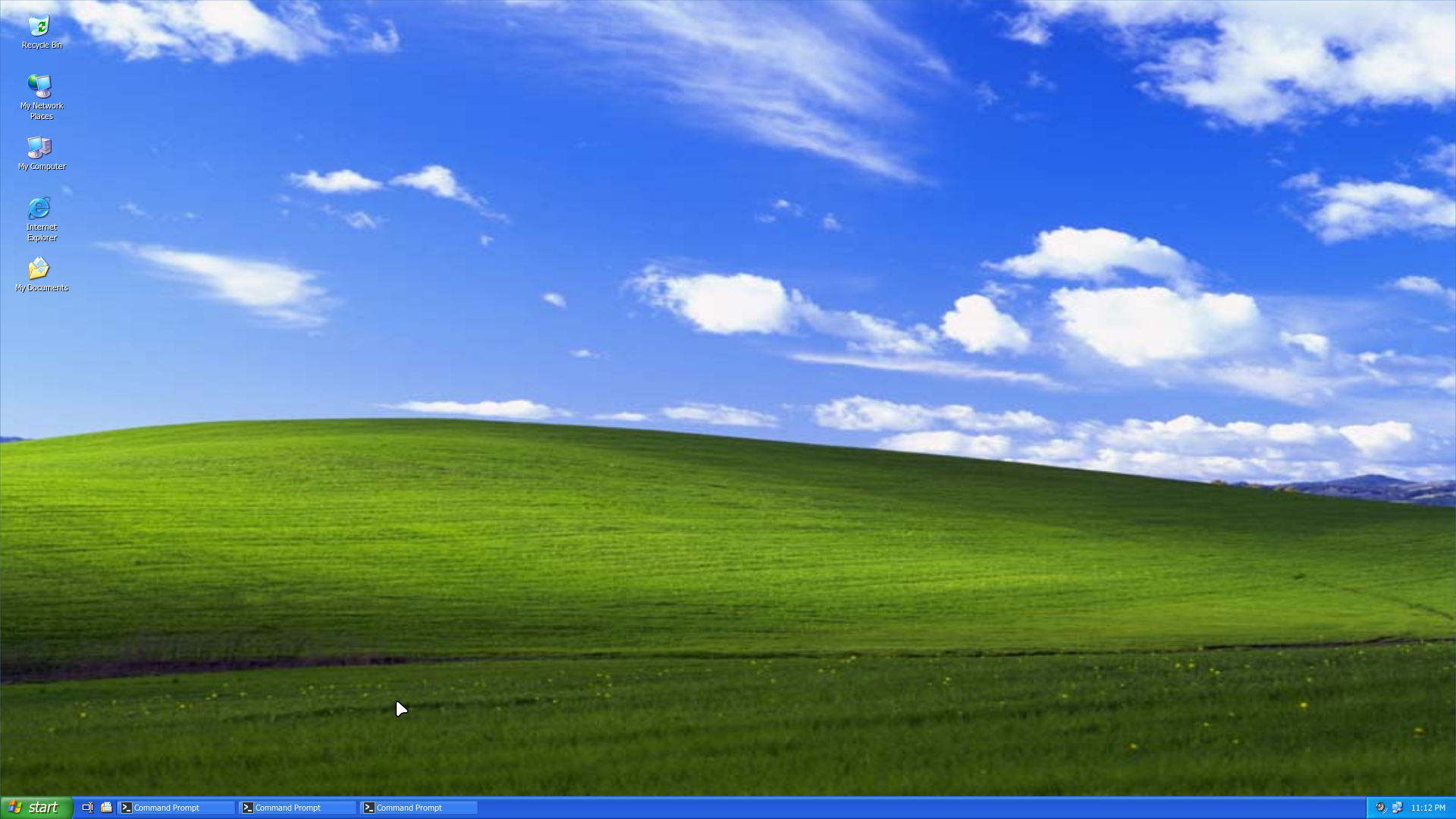
A desktop has to behave like one
Getting the colors close is a starting point. The more interesting work is what happens when you click something: which window gets focus, how a caption button responds, where a menu opens, and whether closing it puts you back in the application you were using.
XPWm starts with floating windows and click-to-focus. The compositor draws titlebars and caption buttons and handles window actions. A separate shell supplies the desktop, taskbar, Start menu, and session dialogs. The taskbar needs to follow actual application state, rather than just display a convincing row of buttons.
The Start menu has the familiar two-column layout, discovers installed Linux applications, and organizes All Programs into categories. Desktop items such as My Computer, My Network Places, and Recycle Bin connect to Linux file-manager locations through GIO. What opens depends on the applications and filesystem backends installed on the machine.
The desktop also works with files in the XDG Desktop folder. Selection rectangles, dragging icons, renaming, trash, copy and paste, sorting, and saved icon positions are implemented. Application shortcuts can be pinned to Start or added to the desktop. Search supports filename wildcards, text content, size and date filters, and saved searches.
Window behavior has its own details: crowded taskbars group windows from the same application, and groups expand again when space is available. Floating Mode and WM Mode preserve a per-monitor layout preference, with saved window positions restored when returning to floating. Click-to-focus is the default, with an optional X-Mouse setting for activation on hover.
Under the blue taskbar
The compositor is written in C, built from dwl and wlroots. It owns window geometry, focus, stacking, input, and decorations. The shell uses GTK3 and Cairo, with layer-shell placing desktop and panel surfaces and reserving space for the taskbar.
Keeping those responsibilities separate matters. Clicking a taskbar entry asks the compositor to activate a window; the shell does not keep a competing version of window state. The desktop and taskbar also run as separate processes, so either can be restarted independently.
There is a lot of ordinary Linux integration behind the familiar controls: desktop entries for application discovery, a private D-Bus session, and notification support that presents application messages as pale-yellow XP-style tray balloons.
The small details add up
Luna’s rounded captions, button states, frame edges, fonts, and spacing all contribute to the result. XPWm can use locally extracted XP artwork and fonts, with recreated artwork as a fallback. Private imports stay separate from the installed programs; the public installation includes fallback assets.
The session applies its Luna theme to GTK applications launched inside XPWm. Applications with their own custom interfaces still need individual attention. A modern browser’s controls, for example, will not automatically become an exact XP recreation.
The Welcome and logoff screens are part of the presentation too. Authentication still belongs to Linux’s PAM and display-manager setup. Recreating the account-selection screen does not replace that boundary.
Appearance settings now offer 96, 120, and 144 DPI font sizes. Desktop labels, taskbar text, window captions, and GTK3 applications update during the session. Font sizing is separate from display scaling, so larger text does not require changing the whole desktop’s scale.
Display Properties can also change a monitor’s resolution, refresh rate, and scaling. Changes have a Keep Changes / Revert prompt, with an independent helper restoring the previous configuration after 15 seconds if it is not confirmed. Confirmed settings persist for matching displays.
Screen savers, locking, and everyday tools
The screen saver collection includes native Cairo recreations of 3D Pipes, Mystify, Starfield, FlowerBox, and other XP favorites. They run without Wine, respect idle inhibitors, and animate only while active. There is also a Gentoo ASCII DVD saver, because a Linux desktop deserves at least one giveaway.
Secure locking uses an XP-styled swaylock variant with system PAM authentication and Wayland session-lock. Its password screen shares the Welcome screen’s artwork and typography. Optional automatic locking has its own timeout, separate from when the screen saver starts; it requires a working locker and system authentication setup.
Other practical pieces include native full-desktop and area screenshots, clipboard image support, tray volume and brightness controls, and an optional Night Light setting backed by wlsunset. The Run dialog discovers commands in the background and offers history and completion. These are the things that make it possible to spend time in the desktop after taking the screenshot.
Trying it on Linux
The repository includes an installer that builds a user installation under ~/.local:
git clone https://github.com/e10null/XPWm.git
cd XPWm
./install.sh --deps
The build requires wlroots 0.18.x and Python 3.11 or later, along with the compositor and shell dependencies documented in the repository. The installer can request packages through supported distribution package managers, but package availability varies. A dependency recipe does not establish that a distribution has been tested on real hardware.
After installation, xpwm nested runs inside an existing Wayland session, while xpwm tty starts from a logged-in text console with the appropriate seat permissions. The public repository contains source and fallback artwork. Original XP artwork and fonts are imported locally from your own XP SP3 media and kept outside the public source tree.
Where it stands
XPWm has grown into a runnable desktop with window management, file operations, settings, notifications, screen savers, and secure locking support. Visual fidelity and application compatibility remain ongoing work, especially where applications draw their own controls. The default build is native Wayland; X11 applications require an optional XWayland-enabled build.
The project includes headless smoke checks and window interaction checks covering operations such as minimize, maximize, restore, resize, and close. Those checks help catch regressions, but physical input, real multi-monitor sessions, and visual fidelity still need hands-on testing.
The part I enjoy is connecting the recognizable surface to a working desktop underneath it. A screenshot captures the look. Using the menus, switching windows, and launching real applications is where the recreation has to hold together.